I am working on windows application after long time, after completing application when I decided to create a setup file in Visual Studio 2012 and found that there is no Setup and Deployment project as it was in Visual Studio 2008. I search for sometime and InstallShield which allows user to create Setup project. Let me share how to create a simple Setup or MSI package for your application.
Step 1: Download and Install InstallShield Express edition from here.
Step 2: Open visual Studio and select File New Project. From new project dialog select Other Project Types – Setup & Deployment and you can see InstallShield project as shown below.
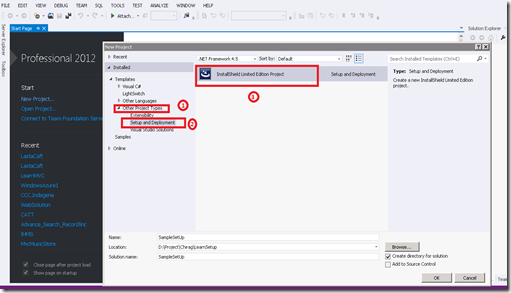
Fig –1 Create Setup Project
Once you press OK button, it will create a project and open a screen as shown in below image. As you can see InstallShield provide 6 simple steps to create Setup file.
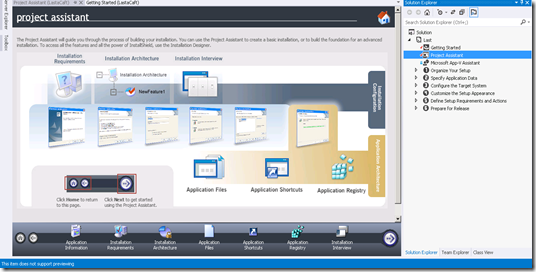
Fig –2 InstallShield home screen
Step 3: Application Information – This step allows you to provide detail about your company, application and current version of application. You can version number as MajaorVersion.MinorVersion.BuildNumber . For simplicity I have used Sample detail in all fields.
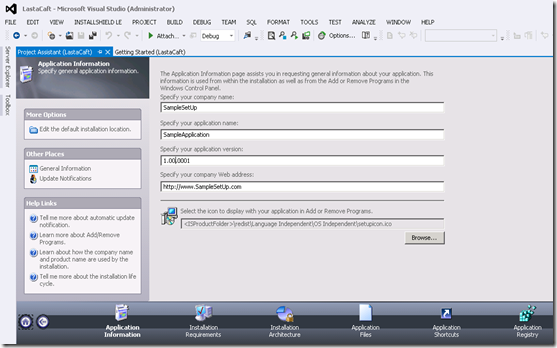
Fig –3 InstallShield – Application information
Step 4: Application requirement – This step allows you to OS and necessary prerequisites to be installed on client machine to run your application. You can select all version of windows by choosing “No” or select appropriate version of windows by choosing “Yes”. Select version of .NET framework require on client machine to run your application. Make sure you choose all necessary options, this is important as if you miss any, your application will not work on client machine.
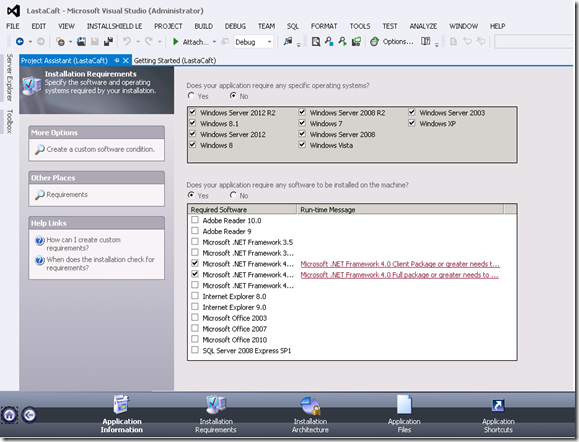
Fig –4 InstallShield – Installation Requirements
Step 5: Installation Architecture – This step allows you to choose features you want to include in this setup. As this is limited/express edition you can not choose features, everything will be installed. For example, if you have develop two new modules in this version however you just want to release only one module, you can select that module here.
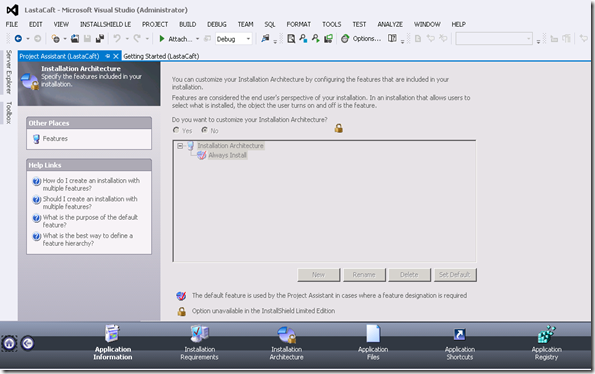
Fig –5 InstallShield – Installation Architecture
Step 6: Application Files – Here you have to select files/folders which is required to run your application. If you are not sure which configuration files and exe are required, the easiest way is to select all files from BIN folder. If you have XML configuration files in different folder you can select Add folder option to add them.
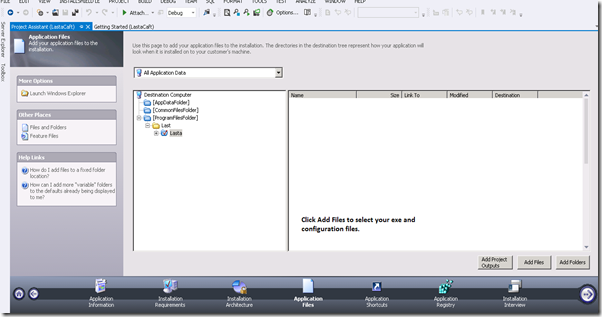
Fig –6 : InstallShield – Application Files
Step 7 Application Shortcut – Decide where do you want to add shortcut of your application. Select icon for shortcuts by selecting .ico file. This icon will appear as shortcut at selected path.
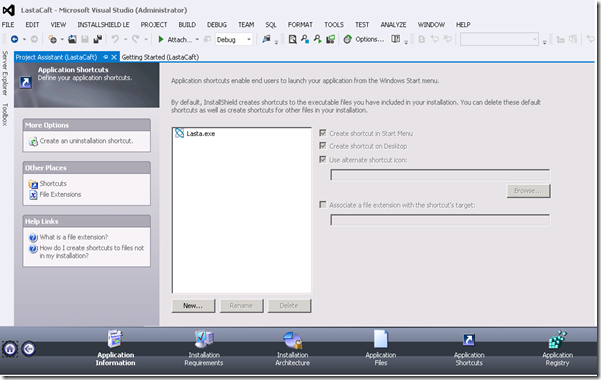
Fig –7 InstallShield – Application Shortcuts
Step 8: Application Registry – If your application is reading specific value from registry than it must be available in client machine’s registry. Here is you can add these values in registry. For example, if you want that your Application will run for 15 days only, than add a key in registry which store installation date and every time your application compares system date with registry entry to check number of days. This is not most secure way or desirable way to make sure your application run for 15 days only however I am just giving an example. Please do not mess with registry if you are not sure how to use it.
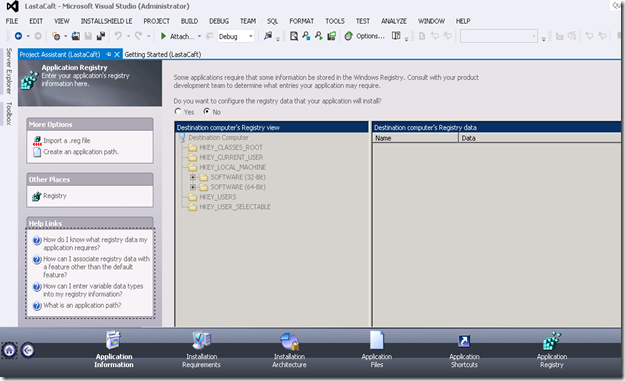
Fig –8 InstallShield – Application Registry
Step 9: Installation Interview – The first option says “Do you want to display a license agreement dialog?”. If you have your terms and condition and agreement defined than create .rtf file and select that file using browse button. Choose “No” and agreement dialog will not be displayed to client. Other options listed on screen is very simple to understand so select appropriate option in that.
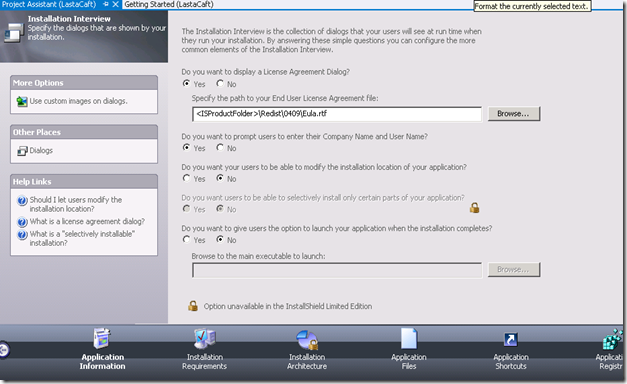
Fig –9 InstallShield – Application Interview
This was the last step and now you are ready to generate your Setup/MSI package. Right click on project name from solution explorer and click on Rebuild option. This will generate Setup/MSI in “<your solution file path>\Express\DVD-5\DiskImages\DISK1” folder. \Express\ can be different depending on InstallShield version you have installed. Here is the Setup file generated by our steps.
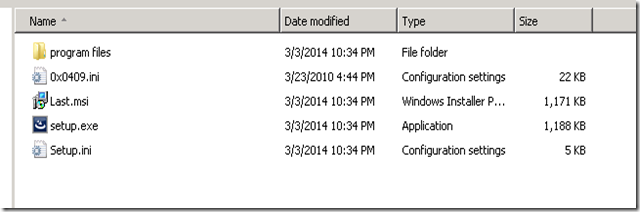
Fig –10 InstallShield – Generated Setup files
Let me know if you have any questions.
Happy Programming !!!





 Tech Treasure